Perhaps you have experienced a very slow windows booting.
Here are the steps to be booting into your windows faster:
Step 1:
Open notepad application
Type "del c: \ windows \ prefetch \ ntosboot-*.* / q" (without the quotes)
and save as ntosboot.bat in the name of the drive c: \
Step 2:
Then click the Start menu-> Run-> and type gpedit.msc
Step 3:
Click Computer Configuration-> Windows Settings-> Scripts-> 2 times and click on Shutdown
Step 4:
In Windows Shutdown Properties click add browse ago. and search the file location ntosboot.bat that you created earlier and click open
Step 5:
Then click OK, Apply and OK again to finish
Step 6:
Then click the Start menu-> Run-> devmgmt.msc and
Step 7:
Click IDE ATA / atapi controllers-> Primary IDE Channel (click 2 times to open the properties)
Step 8:
Select Advanced Settings
In the Device 0 or Device 1
Change Device Type None into (Change Device Type only option that is not locked)
Step 9:
Click IDE ATA / atapi controllers-> Secondary IDE Channel (click 2 times to open the properties)
Repeat Step 8 as
Step 10:
Restart your Computer and you can see the changes.
Hopefully helpful

Showing posts with label TIPS N' TRICKS. Show all posts
Showing posts with label TIPS N' TRICKS. Show all posts
Thursday, April 09, 2009


How to Unactivate or Stop Autoplay (Windows)
Autoplay is a service from windows that can give options if there is a removable drive or CD plugged in to the computer.
Most of virus use it to infecting a computer that use Windows.
But there is a method to prevent computer from infection (excluded antivirus).
The method is by stopping the autoplay service, and here are the steps...
First, click start button at your desktop screen. Then choose "Run".
After that, fill the blank textbox with "gpedit.msc".
Then after you see a new window, choose Administrative Templates --> System
Find "Turn off autoplay" in the folder. And double click it.
After you see a window like below, choose "Enabled" and in the circled box choose "All drives"
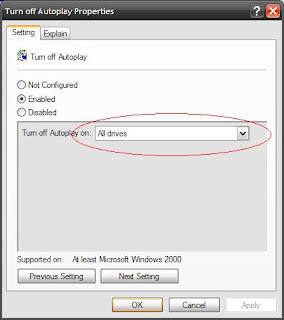
Finally, just click OK...
Most of virus use it to infecting a computer that use Windows.
But there is a method to prevent computer from infection (excluded antivirus).
The method is by stopping the autoplay service, and here are the steps...
First, click start button at your desktop screen. Then choose "Run".
After that, fill the blank textbox with "gpedit.msc".
Then after you see a new window, choose Administrative Templates --> System
Find "Turn off autoplay" in the folder. And double click it.
After you see a window like below, choose "Enabled" and in the circled box choose "All drives"

Finally, just click OK...
Sunday, April 05, 2009
Take Care of Our Flashdisk
Flashdisk is a kind of data storage. Most of people in the world have it, because flashdisk is portable and easier for saving data.
If we don't take care of it, it will be broken, right...?
But don't worry, there are some tips to prevent our FD not broken.
And here are the tips :
> Keep your FD from oil or something like that. Because in the time before I ever put my FD edge in to kerosine to remove its rust. But the result is different, my FD become write-protected. I can't copy or store my data to it, format it, defrag it. That was my unforgetable thing. Unbelieveable....
>Keep your FD far from water except for waterproof FD. Its to prevent our FD from rust.
>Make sure your FD defragged periodically, maybe once a week or once per month.
If you wanna download software for defragmentation, please check my previous post.
Monday, January 26, 2009
How to Optimize Your Firefox 3.0 Ability ?
Here is the tips to accelerate your firefox 3.0 :
1. Launch -Firefox 3.0 browser and you type the command "about: config" (without quotation marks), in the address bars.
2. You will be taken to the configuration page of Firefox-3.0. If there is a warning to be careful to change the settings on the page, click yes or ok only.
3. In the filter search bar in the configuration page, type "network.http.pipelining". Make sure the value is already set with "true".If it's still "false", double-click to make it "true."
4. Back to the filter search bar, type "network.http.pipelining.maxrequests". Double click on this option and change the value to 8.
5. Back to the filter search bar, type "network.http.proxy.pipelining", double click to change the value to 'true'.
6. Back to the filter search bar, type "network.dns.disableIPv6". Double click to change the value to 'true'.
7. Right-click on the configuration page is where it's up, select new -> boolean. Type "content.interrupt.parsing" in the popup window that appear and then click OK. When prompted for the options appear, select 'true'.
8. Back right click configuration page, select new -> integer. Type "content.max.tokenizing.time". At the prompt value that appears enter "2250000".
9. Back right click configuration page, select new -> integer. Type "content.notify.interval". Enter "750000" on the prompt value that appears.
10. Kembali klik kanan halaman konfigurasi, pilih new –> boolean. Back right click configuration page, select new -> boolean. Ketikkan “content.notify.ontimer”. Type "content.notify.ontimer". Pilih ‘true’ untuk isian prompt value yang muncul. Select 'true' value for the field prompt that appears.
11. Back right click configuration page, select new -> integer. Type "content.notify.backoffcount". At the prompt that appears fill "5".
12. Back right click configuration page, select new -> integer. Ketikkan “content.switch.threshold”. Type "content.switch.threshold". Enter "750000" for integer value in the prompt that appears.
13. Finally, right-click again on the configuration page, select new -> integer. Type "nglayout.initialpaint.delay". Enter "0" in the prompt field value that appears.
Don't Forget to restart Firefox to see the differences.
Happy Testing
Source: http://finderonly.com/
Subscribe to:
Posts (Atom)